
Docs / Using Tresor
Projects
Projects let you group related conversations and files into focused workspaces with custom instructions, so the AI understands your context.
Projects
In a nutshell: Projects let you group related conversations and upload files into a focused workspace. You can add custom instructions so the AI automatically understands the context of your work.
What are projects?
A project is like a folder for related work. Instead of starting separate conversations for the same topic, you can:
Group conversations — Keep all chats about a specific client, deal, or initiative together.
Upload documents — Add files that provide context for every conversation in the project.
Set custom instructions — Tell the AI how to behave in this project (e.g., "Always respond in formal legal language" or "Focus on EU regulatory compliance").
The AI in project conversations has access to your uploaded files and follows your project instructions automatically.
Creating a project
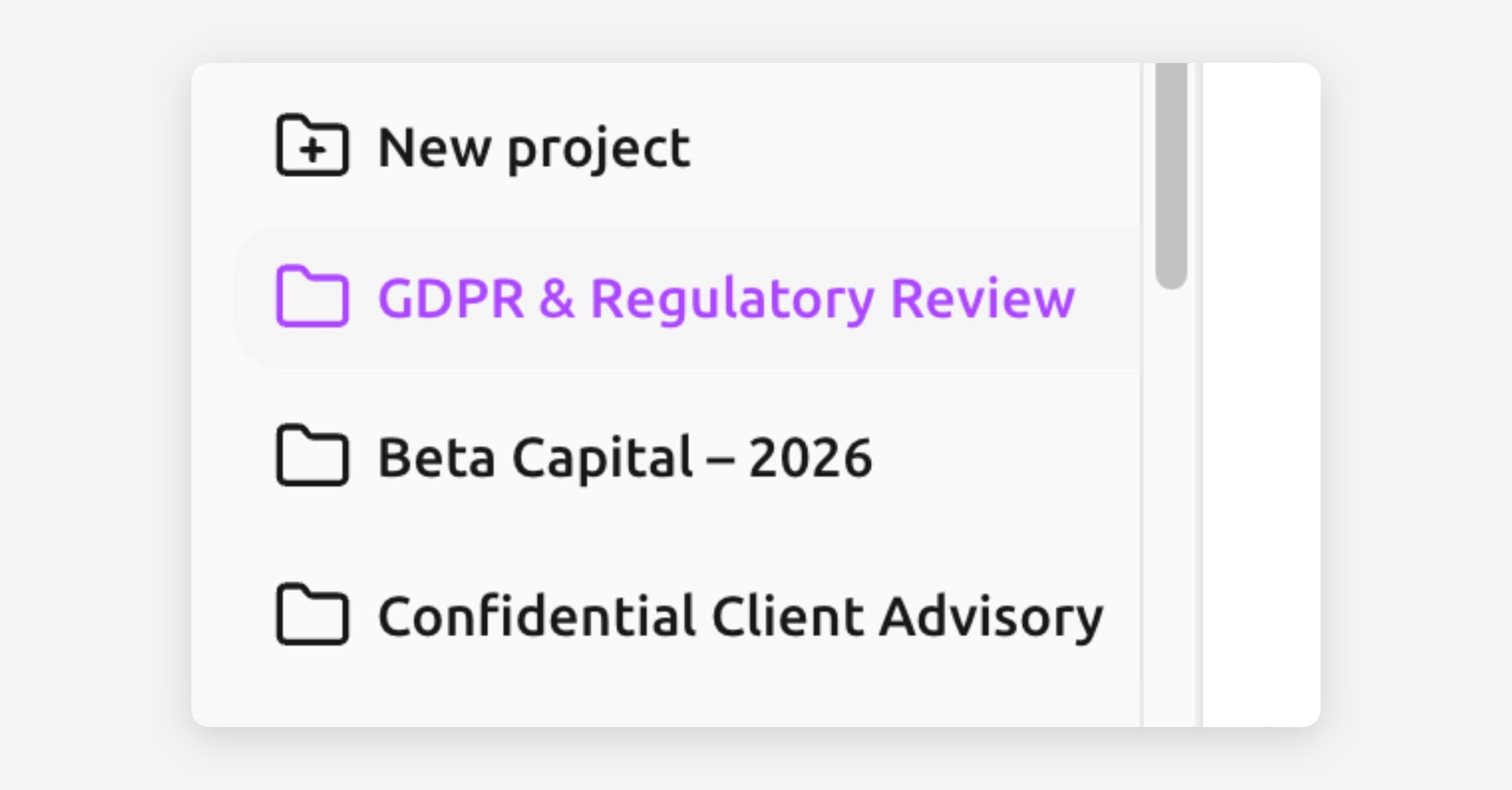
In the sidebar, click New project (the folder-plus icon).
Enter a project name (e.g., "Quarterly Report Q1" or "Client — Acme Corp").
Optionally, add instructions that apply to all conversations in this project.
Click Create project.
[Screenshot: The "New project" modal showing fields for project name and instructions]
💡 Tip: Good project instructions are specific. Instead of "Be helpful," try "You are assisting a corporate lawyer preparing due diligence documentation for a Series B investment round. Always cite relevant clauses."
Adding files to a project
Open your project by clicking its name in the sidebar.
Open Project settings (the gear icon) or click Add files.
Drag and drop files into the upload area, or click to browse your computer.
Files are encrypted and processed automatically. You'll see progress indicators:
Uploading → Parsing → Chunking → Embedding → Ready
Once files show Ready, the AI can reference them in conversations within this project.
[Screenshot: The project settings panel showing uploaded files with status indicators (Ready, Processing)]
Supported files
You can upload documents and images. Common formats include PDFs, Word documents, text files, and images. Files are encrypted end-to-end before upload.
🔒 Privacy: Uploaded files are encrypted in your browser before they leave your device. Processing (parsing, chunking, embedding) happens inside the secure enclave. Tresor's servers store only encrypted data.
Creating conversations inside a project
When you open a project, you'll see a prompt box at the top. Type a message there to start a new conversation that's automatically part of that project.
You can also move existing conversations into a project — see Conversations.
Project instructions
Instructions you set for a project apply to every conversation inside it. This is useful for:
Setting the AI's role or expertise (e.g., "Act as a financial analyst")
Defining output style (e.g., "Always use bullet points and keep responses under 200 words")
Providing background context (e.g., "The client is a German SME in the manufacturing sector")
To update instructions:
Open the project.
Click the gear icon to open project settings.
Edit the Instructions field (up to 6,000 characters).
Click Save changes.
Sharing projects with your team
If you're on a Team or Enterprise plan and working in a team workspace, you can share projects with colleagues:
Open the project settings.
Click Share project.
Choose which workspace members get access and their permission level (Can view or Can edit).
Click Save.
Shared projects appear with a small dot icon on the folder in the sidebar to indicate they're collaborative.
🔒 Privacy: When you share a project, Tresor securely shares the encryption key with the invited members — but neither Tresor nor anyone outside the project can access the content.
Good to know
Projects are available on Pro, Team, and Enterprise plans. Free plan users will be prompted to upgrade.
Each project can hold multiple conversations and files.
Project names and instructions are encrypted, just like your chat content.
You can rename or delete a project from the sidebar (right-click → Rename or Delete).
Deleting a project deletes all its conversations and files. This cannot be undone.
Related articles
Documents and images — More about uploading and using files.
Conversations — Organize and find your chats.
Workspaces and team collaboration — Learn about team collaboration.
Was this helpful?