
Docs / Using Tresor
Project files and context
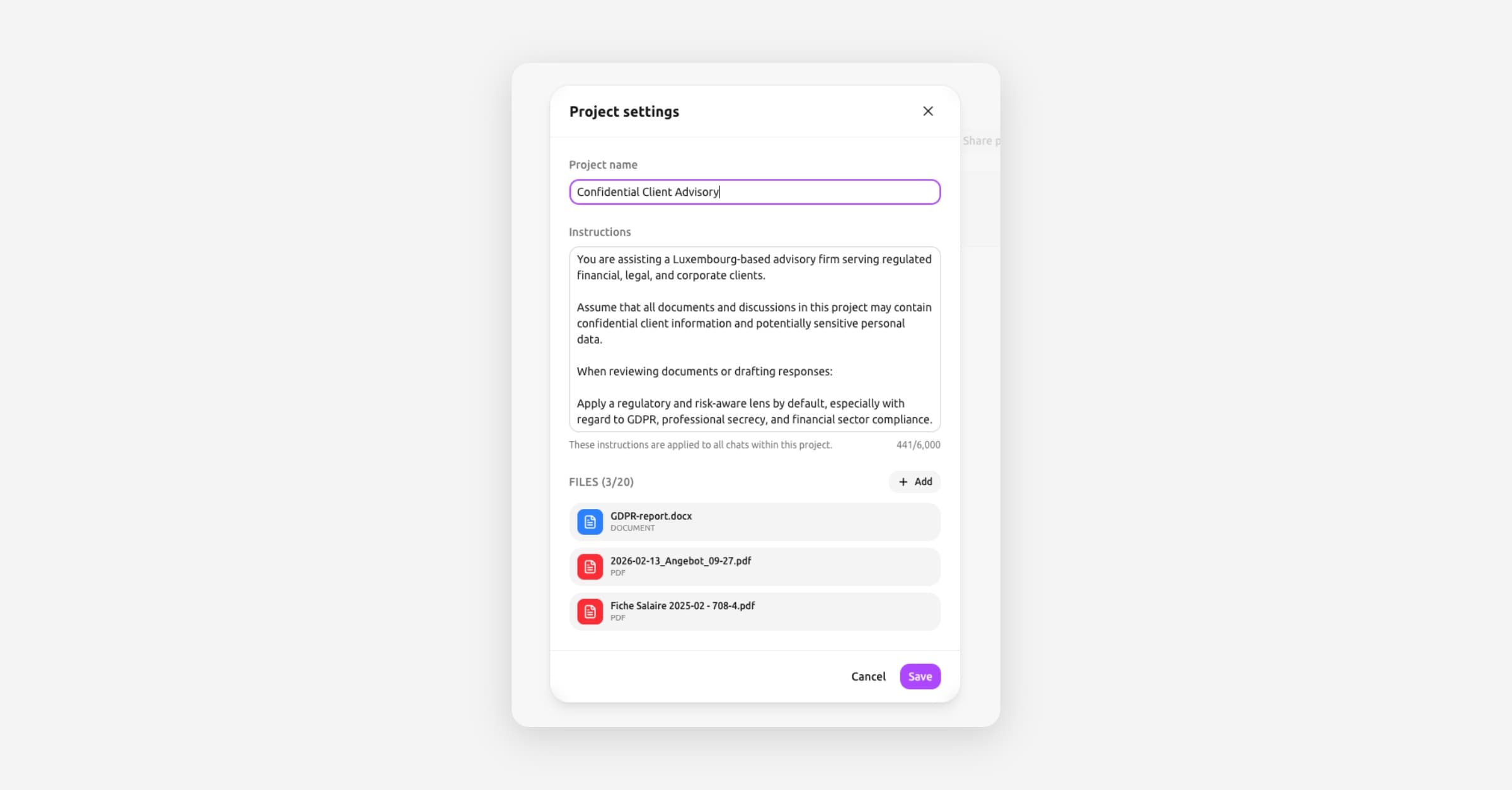
Upload documents to a project so the AI can reference them across all conversations in that project — files are encrypted, persistent, and processed inside the enclave.
Project files and context
In a nutshell: Upload documents to a project and the AI can reference them in every conversation within that project. Files are encrypted end-to-end, processed inside the enclave, and persist as long as the project exists.
How project files differ from chat attachments
Chat attachments | Project files | |
|---|---|---|
Scope | Single message | All conversations in the project |
Persistence | Expires after session | Persists with the project |
Processing | Basic analysis | Full parsing, chunking, and embedding |
Best for | Quick one-off analysis | Ongoing reference material |
If you just need to ask "summarize this PDF" once, attach it in a chat. If you need the AI to reference a document across multiple conversations or over time, upload it to a project.
Uploading files to a project
Open your project by clicking its name in the sidebar.
Click the gear icon to open project settings, or click Add files.
Drag and drop files into the upload area, or click to browse your computer.
Files are encrypted and processed automatically.
[Screenshot: The project settings panel showing uploaded files with status indicators (Ready, Processing)]
Processing stages
After uploading, each file goes through several stages inside the secure enclave:
Uploading — The encrypted file is transferred.
Parsing — The enclave decrypts and extracts the text content.
Chunking — The content is broken into meaningful sections.
Embedding — Each section is indexed so the AI can find relevant passages.
Ready — The file is fully processed. The AI can now reference it.
You'll see a status indicator for each file. Most files are processed in seconds to a minute. Larger documents take longer.
How the AI uses project files
Once files show Ready, the AI in that project can:
Answer questions based on file content ("What does section 3.2 of the contract say about liability?")
Cross-reference across files ("Compare the terms in the NDA with the service agreement")
Summarize or extract information ("List all the deadlines mentioned in these documents")
You don't need to mention files by name — the AI automatically searches your project files for relevant context when you ask a question.
Managing project files
Viewing files
Open the project and click the gear icon. You'll see a list of all uploaded files with their processing status.
Removing files
Click the remove button next to any file in the project settings. The file and its index are deleted. The AI will no longer reference it in future conversations.
⚠️ Note: Removing a file doesn't retroactively change previous AI responses that referenced it.
Supported file types
Common document formats are supported, including:
PDF — Contracts, reports, presentations
Word documents (.docx) — Drafts, memos
Text files (.txt, .md) — Notes, raw text
Images (.png, .jpg) — When using a vision-capable model
💡 Tip: For best results, use text-based PDFs rather than scanned image PDFs. If you have a scanned document, use image analysis in a conversation first (with Kimi K2.5) to extract the text.
Good to know
Project files persist as long as the project exists. Deleting the project deletes all files.
All files are encrypted in your browser before upload. Tresor's servers store only ciphertext.
Processing happens entirely inside the secure enclave — your file content is never exposed.
The number of files you can upload may depend on your plan.
When you share a project with teammates, they get access to the files too (encrypted key exchange).
🔒 Privacy: Your documents go through a full encryption pipeline: encrypted in your browser → stored as ciphertext → decrypted and processed only inside the sealed enclave. Even the search index (embeddings) is stored encrypted. Tresor cannot read your files.
Related articles
Documents and images — Quick one-off file analysis in a chat.
Projects — Create and manage projects.
How Tresor protects your privacy — How encryption works.
Was this helpful?