
Docs / Using Tresor
Documents and images
Upload documents and images directly into a conversation or project for the AI to analyze, summarize, or reference — everything stays encrypted end-to-end.
Documents and images
In a nutshell: Attach documents and images to any conversation or project. The AI can analyze, summarize, and reference them — all encrypted end-to-end.
Uploading files in a conversation
Using the attachment button
Click the paperclip icon (📎) in the prompt box.
Select a file from your computer.
The file appears as an attachment chip above the prompt box.
Type your message (e.g., "Summarize this document") and press Enter.
Using drag and drop
Drag a file from your desktop or file manager.
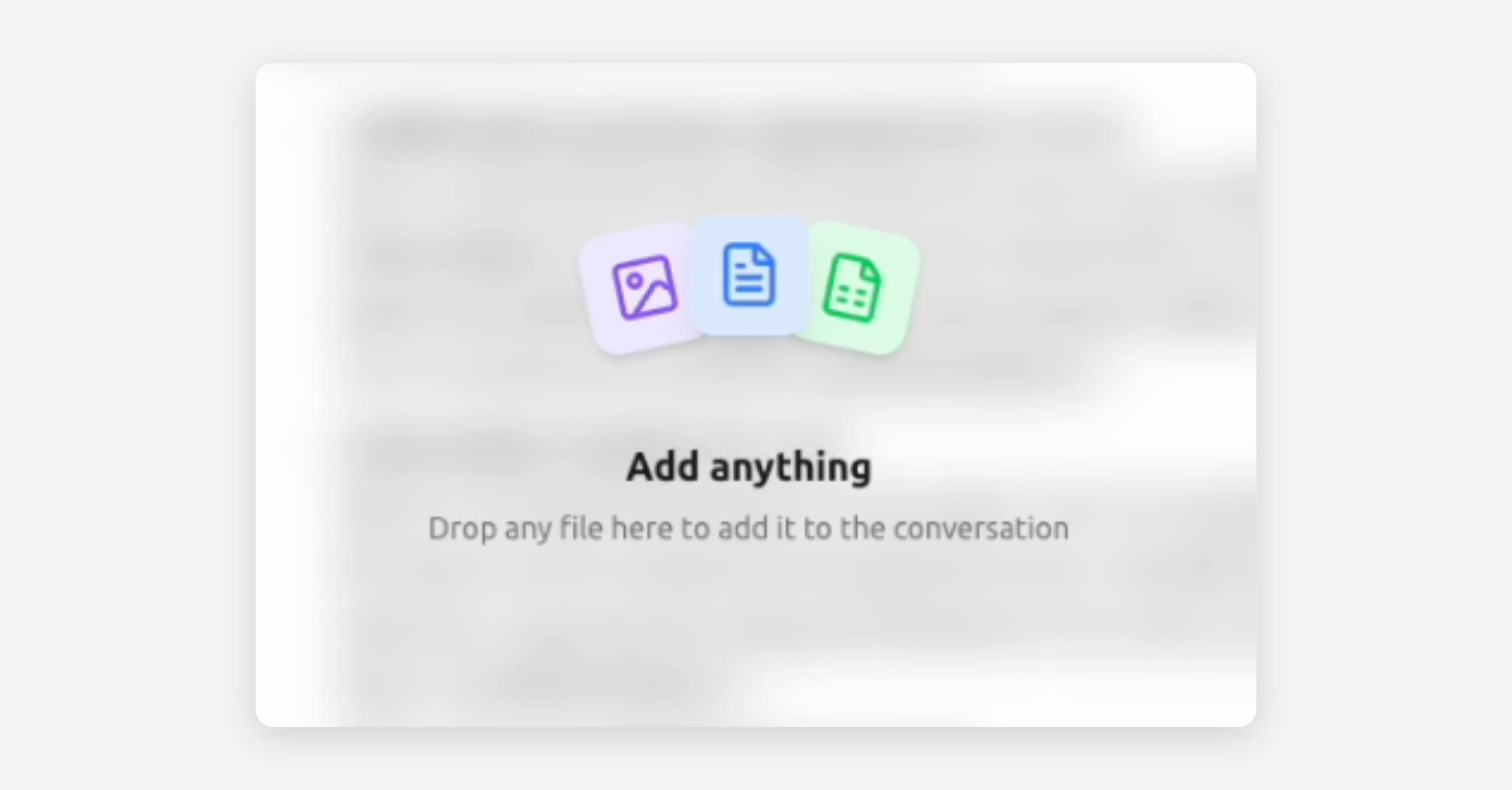
Drop it anywhere on the Tresor chat window — you'll see a "Drop any file here" indicator.
The file is attached and ready to send with your next message.
[Screenshot: The chat prompt box with an attached file chip showing the filename, and the "Drop any file here" overlay]
Uploading files to a project
When you upload files to a project, the AI can reference them across all conversations in that project — not just a single chat.
Open your project.
Go to Project settings → Files.
Click Add or drag and drop files.
Wait for processing to complete (the status changes from "Uploading" to "Ready").
See Projects for full details on project file management.
Image analysis
Tresor supports image uploads for models with vision capabilities. Currently, Kimi K2.5 can analyze images.
To use image analysis:
Make sure Kimi K2.5 is your selected model.
Attach an image using the paperclip icon or drag and drop.
Ask your question about the image (e.g., "What does this chart show?" or "Extract the text from this screenshot").
[Screenshot: A conversation with an uploaded image and the AI analyzing its contents]
💡 Tip: Image analysis works well for charts, diagrams, screenshots, handwritten notes, and photos of documents. Clear, high-resolution images give better results.
What happens to your files
When you upload a file, here's what happens behind the scenes:
Encrypted in your browser — The file is encrypted before it leaves your device.
Uploaded securely — Only the encrypted version travels to Tresor's servers.
Processed in the enclave — Inside the secure enclave, the file is decrypted, parsed, and prepared for the AI to reference.
Answered privately — The AI works with your file content inside the enclave and sends back an encrypted response.
For project files, the processing includes additional steps (chunking and embedding) that make the content searchable across multiple conversations.
File expiration
For your privacy, directly attached files (not project files) are not permanently stored. They expire after your session ends. If you need to reference the same file again later, simply re-upload it.
🔒 Privacy: Your files are encrypted end-to-end. Tresor's servers only store ciphertext — the encrypted version that's unreadable without your keys. Processing happens exclusively inside the sealed enclave.
Good to know
File size limits may apply depending on your plan.
Image analysis requires a vision-capable model (currently Kimi K2.5). If you're using another model, the AI can't "see" images.
Multiple files can be attached to a single message.
Project files persist and are available across all conversations in that project.
Directly attached files in regular chats are ephemeral (session-based).
Related articles
Projects — Organize files and conversations together.
Choosing an AI model — Which models support vision.
How Tresor protects your privacy — How file encryption works.
Was this helpful?