
Docs / Getting Started
Your first conversation
Send your first message to a private AI in Tresor — type a question, hit Enter, and get an encrypted, verified response.
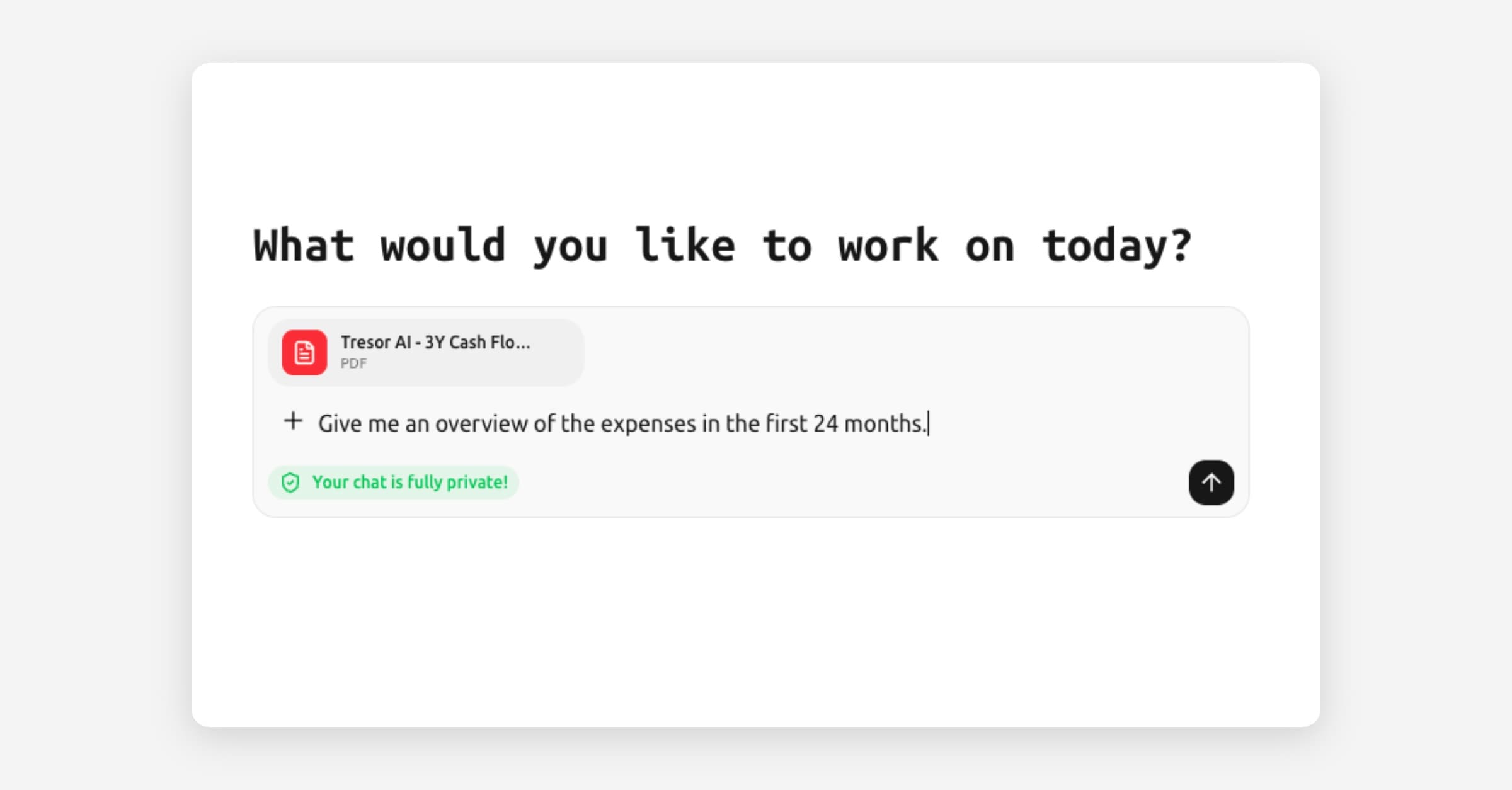
Your first conversation
In a nutshell: Type your message in the prompt box at the bottom of the screen and press Enter. The AI responds in real time, and everything is encrypted and private.
Step by step
1. Open Tresor
Go to chat.trytresor.com and log in. You'll see a home screen with a greeting and a text input area at the bottom.
[Screenshot: The Tresor home screen showing a greeting message and the prompt box at the bottom]
2. Type your message
Click the prompt box at the bottom and type your question or request. For example:
"Summarize the key points of GDPR Article 17"
"Draft a professional email declining a meeting"
"What are the pros and cons of a holding company structure?"
3. Send your message
Press Enter (or click the send button) to send your message. The AI starts responding immediately — you'll see the response appear word by word in real time.
4. Continue the conversation
Once the AI responds, you can ask follow-up questions in the same conversation. The AI remembers the context of your chat, so you can have a natural, flowing dialogue.
For example, after asking about GDPR Article 17, you could follow up with:
"How does this apply to a SaaS company storing customer data?"
"Write a data deletion request template based on this"
5. Notice the privacy indicators
While chatting, you'll notice two things that confirm your privacy:
A privacy badge in the prompt box area — this shows the enclave's verification status before you even send a message.
A small shield icon under each AI response — this confirms that the specific message was processed privately and has a cryptographic proof.
A green badge or shield means everything checked out. You can click either one for more details.
Tips for getting good results
Be specific. "Draft a termination clause for a software license agreement" works better than "Write a contract."
Provide context. The more relevant detail you give, the better the response. If you're working in a specific industry or role, say so.
Iterate. Ask the AI to refine, expand, or rewrite its response. For example: "Make that more concise" or "Add a section about liability."
Use the right model. If you need deep reasoning, choose a model with "Thinking" mode. For quick answers, "Instant" mode is faster. See Choosing an AI model.
Good to know
Conversations are automatically saved and encrypted. You'll find them in the sidebar on the left.
Tresor automatically generates a title for each conversation based on your first message.
You can start a new conversation at any time by clicking New chat in the sidebar or pressing the keyboard shortcut.
On the Free plan, you have 20 messages per day. Upgrade to Pro or Team for unlimited messages.
🔒 Privacy: Your message is encrypted in your browser, streamed directly to a sealed enclave, and processed there. Tresor's servers never see the contents. The response is streamed back to you the same way.
Related articles
Choosing an AI model — Pick the right model for your task.
Conversations — More about managing multiple chats.
How Tresor protects your privacy — What happens behind the scenes.
Was this helpful?