
Docs / Getting Started
Creating your account
Sign up for Tresor with your email and password, verify your email with a 6-digit code, and optionally enable two-factor authentication for extra security.
Creating your account
In a nutshell: Sign up with your email and a password, verify your email with a 6-digit code and set up 2FA (optional). The whole process takes about two minutes.
What you'll need
An email address
A password (at least 8 characters)
Step by step
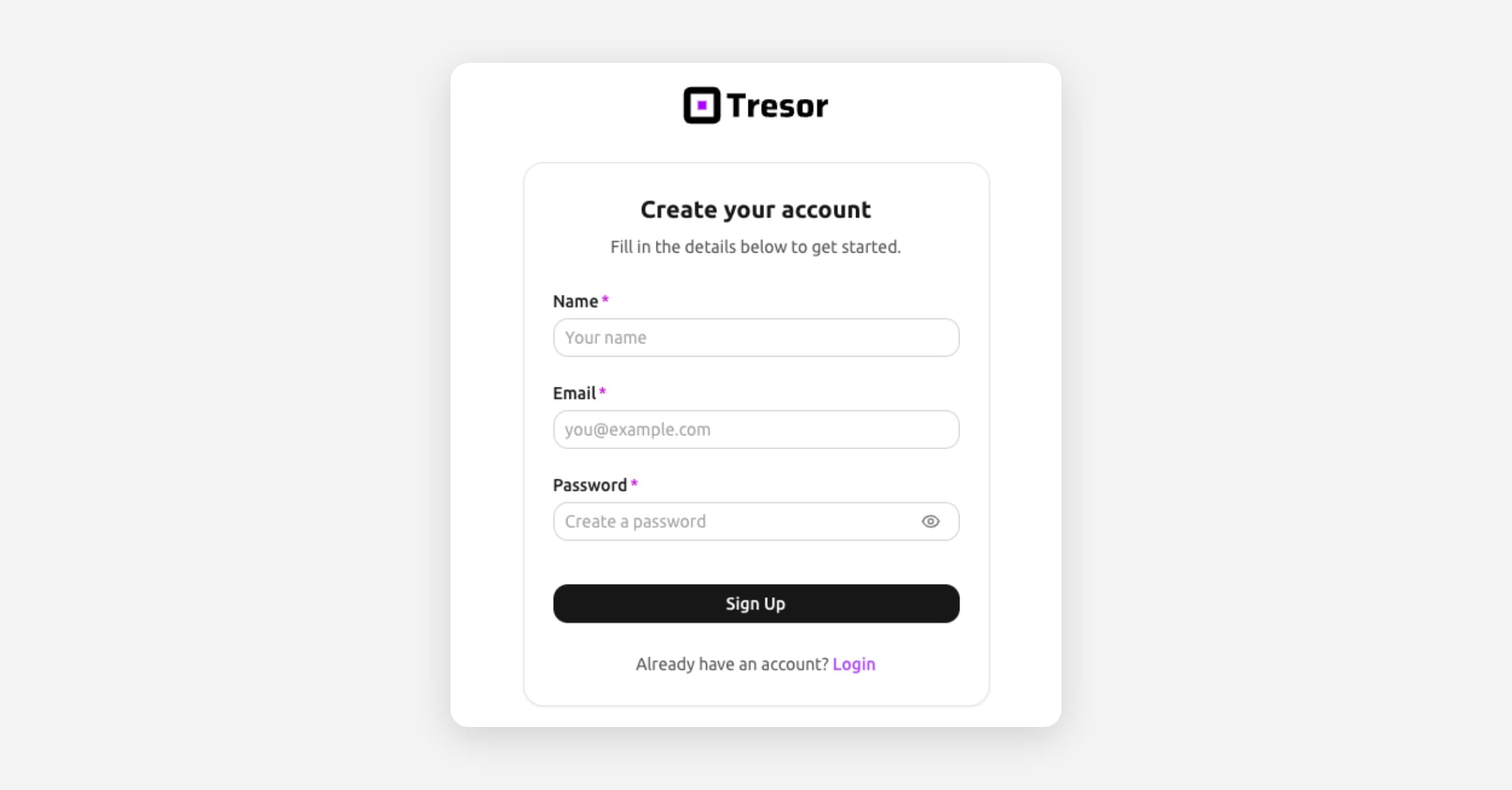
1. Go to the signup page
Open chat.trytresor.com/auth/signup in your browser.
[Screenshot: The Tresor signup page showing fields for Name, Email, and Password, with a "Sign Up" button]
2. Fill in your details
Enter your name, email address, and choose a password. Your password must be at least 8 characters.
Then click Sign Up.
💡 Tip: Choose a strong, unique password. Tresor uses your password to derive encryption keys that protect your data, so a strong password means stronger protection.
3. Verify your email
Tresor sends a 6-digit verification code to your email. Check your inbox (and spam folder if needed), enter the code, and click Verify code.
[Screenshot: The email verification screen with a 6-digit code input field]
4. Enable two-factor authentication (recommended)
After signup, go to Settings → Security and set up two-factor authentication (2FA).
For best protection against lockouts, register at least two authenticators (for example, phone + password manager).
Tresor does not use recovery codes.
[Screenshot: The Security settings showing 2FA setup and registered authenticators]
⚠️ Note: If you lose access to all MFA devices, you'll need support-assisted MFA reset with identity verification.
5. Start chatting
After email verification, you're signed in and ready to use Tresor.
Already have an account?
Go to chat.trytresor.com/auth/login, enter your email and password, and click Login.
Secure your account with two-factor authentication
We strongly recommend enabling two-factor authentication (2FA) after you sign up. It adds an extra layer of security: even if someone learns your password, they can't access your account without your authenticator app.
You can set this up in Settings → Security. See Two-factor authentication for a step-by-step guide.
Good to know
Your account works across personal use and team workspaces — one login for everything.
Tresor is available in English, German, and French. You can change your language in Settings → Language.
By signing up, you agree to Tresor's Terms of Service and Privacy Policy.
Related articles
Your first conversation — Send your first private message.
Two-factor authentication — Set up 2FA for extra security.
Managing your account — Update your profile and preferences.
Was this helpful?