
Docs / Account
Two-factor authentication
Enable two-factor authentication (2FA) in Settings → Security to add an extra layer of protection. You'll need an authenticator app on your phone.
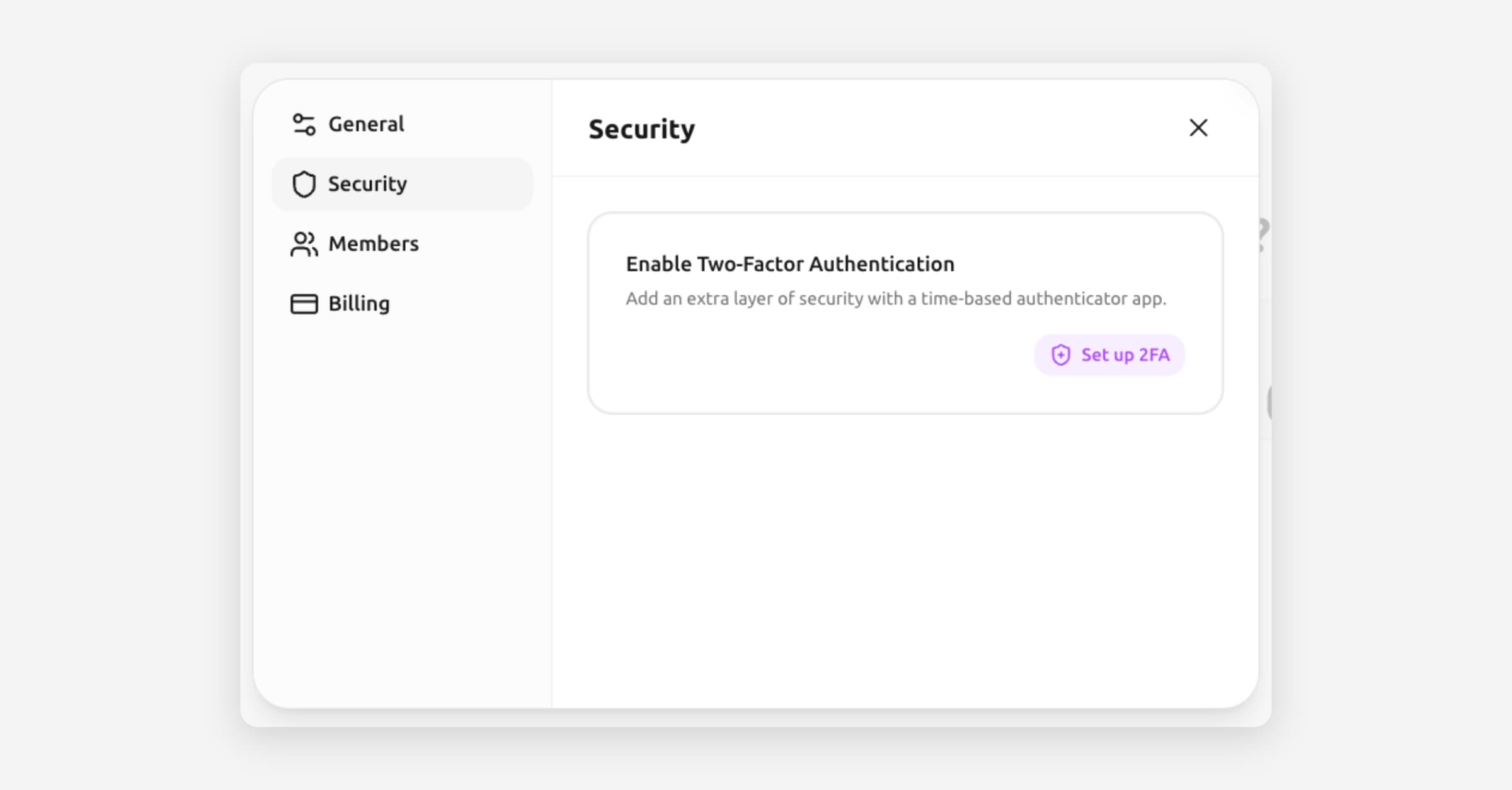
Two-factor authentication
In a nutshell: Two-factor authentication adds a second step to login — after your password, you enter a code from an authenticator app on your phone. We strongly recommend enabling it.
Why enable 2FA?
Your password protects your account. But if someone learns your password (through phishing, a data breach on another site, or simple guessing), they could access your Tresor account.
With 2FA enabled, a password alone isn't enough. An attacker would also need your physical phone with the authenticator app — making unauthorized access significantly harder.
🔒 Privacy: Since your Tresor account holds the keys to your encrypted conversations, protecting it with 2FA means protecting all your private data.
What you'll need
An authenticator app on your phone. Popular options include:
Google Authenticator (iOS / Android)
Microsoft Authenticator (iOS / Android)
Authy (iOS / Android / Desktop)
1Password or other password managers with TOTP support
Setting up 2FA
Go to Settings → Security.
Click Set up 2FA.
Name your device (e.g., "Phone" or "Work phone") — this helps if you add multiple authenticators later.
Scan the QR code with your authenticator app. Or use the manual entry key if you prefer.
Enter the 6-digit code from your authenticator app.
Click Verify & Enable.
[Screenshot: The 2FA setup screen showing a QR code and a field for entering the 6-digit verification code]
That's it. Next time you log in, Tresor will ask for your authenticator code after your password.
Logging in with 2FA
Enter your email and password as usual.
Tresor shows a verification screen.
Open your authenticator app and enter the current 6-digit code.
Click Verify to sign in.
The code changes every 30 seconds. If it expires before you enter it, wait for the next one.
Adding a backup authenticator
We recommend registering a second device in case you lose access to your primary one. You can add up to 10 authenticators.
Go to Settings → Security.
Under your registered devices, click Add another.
Follow the same QR code scan process with your backup device.
Disabling 2FA
Go to Settings → Security.
Click the options menu (⋯) next to the authenticator you want to remove.
Select Remove.
Enter a 6-digit code from that authenticator to confirm.
Click Verify & Disable.
⚠️ Note: Disabling 2FA makes your account less secure. If you're disabling it to switch to a new phone, set up 2FA on the new phone first, then remove the old one.
What if I can't access my authenticator?
If you've lost your phone or can't access your authenticator app:
If you have a backup authenticator: Use the backup device to log in and manage your 2FA settings.
If you don't have a backup: Contact Tresor support for help resetting your MFA. You'll need to verify your identity.
This is why adding a backup authenticator is so important.
Good to know
2FA codes are time-based (TOTP) — they change every 30 seconds and work even without internet on your phone.
You can see all your registered authenticators and when they were added in Settings → Security.
2FA is per-account, not per-workspace. Once enabled, it protects access to all your Tresor workspaces.
Related articles
Creating your account — Account setup basics.
Managing your account — Other account settings.
How Tresor protects your privacy — The full security picture.
Was this helpful?