
Docs / Account
Managing your account
Update your name, email, language, and theme in Tresor's Settings. Your profile applies across personal and workspace accounts.
Managing your account
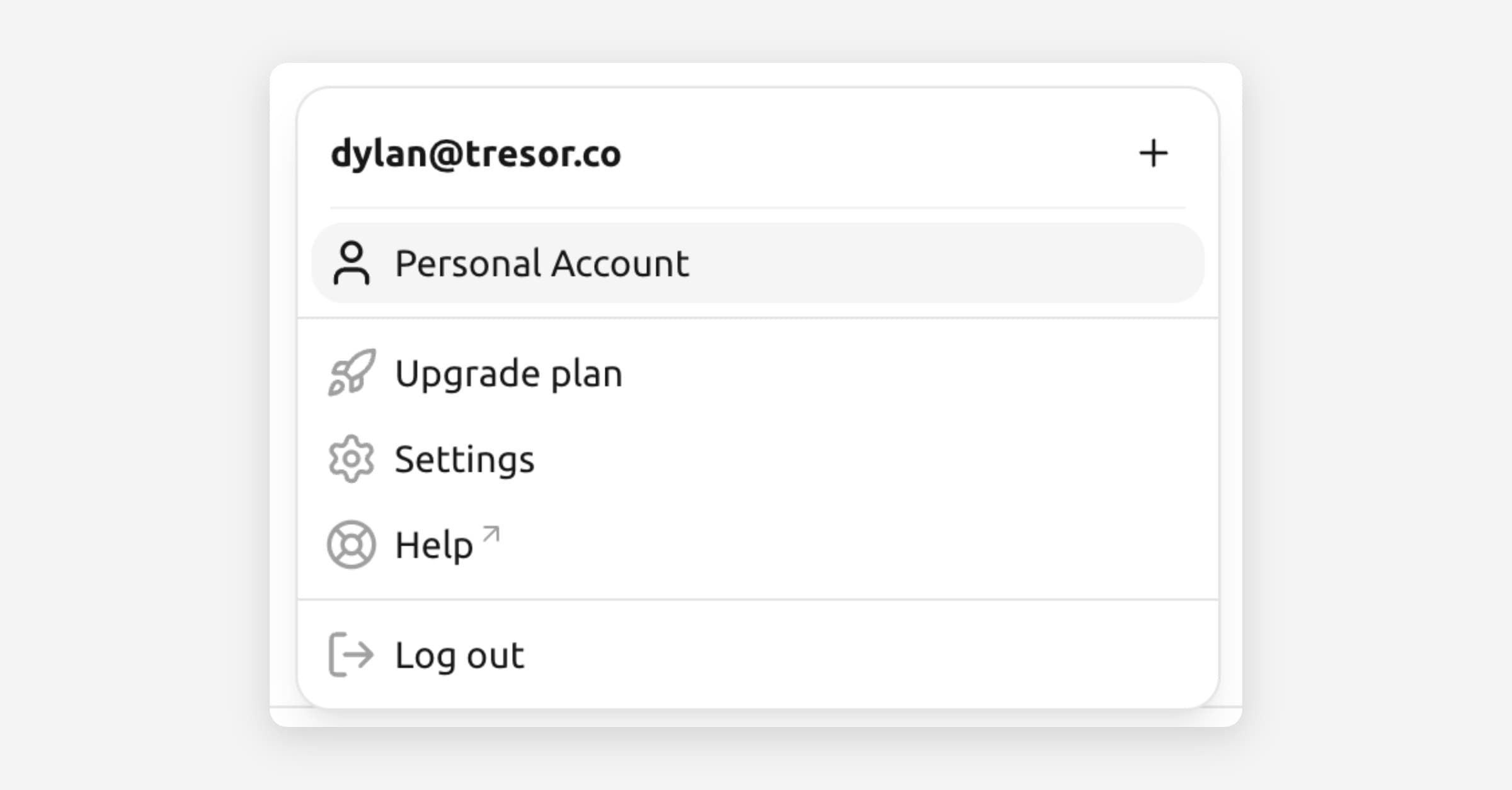
In a nutshell: Open Settings from the user menu in the bottom-left of the sidebar. From there, you can change your name, email, language, and theme.
Opening settings
Click your avatar or name at the bottom of the sidebar.
Select Settings from the menu.
[Screenshot: The user menu in the sidebar showing Settings, Help, and Log out options]
Changing your name
In Settings, go to Profile details.
Click Edit name.
Enter your new name and click Save.
Your name is visible to you and to members of any workspace you belong to.
Changing your email
In Settings, go to Profile details.
Click Edit email.
Enter your new email address and click Save.
Check your inbox for a confirmation email and complete the verification.
⚠️ Note: Changing your email will sign you out from other devices until you confirm the new address.
Changing the language
Tresor is available in:
English
German (Deutsch)
French (Français)
To switch:
In Settings, go to Language.
Select your preferred language from the dropdown.
The interface updates immediately.
Switching between light and dark mode
In Settings, go to Theme.
Choose Light or Dark.
The theme change applies immediately across the entire interface.
Account types
Tresor has two types of accounts:
Personal account — Your individual Tresor account. Conversations and projects are private to you.
Workspace — A team account. Members can collaborate on shared projects while keeping everything encrypted.
You can switch between your personal account and workspaces using the account switcher in the sidebar.
Good to know
Your profile (name and email) is shared across your personal account and all workspaces you belong to.
Account names (for personal accounts) and workspace names can also be edited in settings.
Log out from the user menu at the bottom of the sidebar by clicking Log out.
Related articles
Two-factor authentication — Secure your account with 2FA.
Workspaces and team collaboration — Collaborate with colleagues.
Billing and plans — Manage your subscription.
Was this helpful?